Global Analysis Plots
Info
PLEASE NOTE: some findings in this section are not UKAS accredited to ISO 15189. Mutational signatures and the cluster analysis of somatic SNVs are not currently included in the schedule of accreditation issued by UKAS. Please refer to the schedule of accreditation for more information.
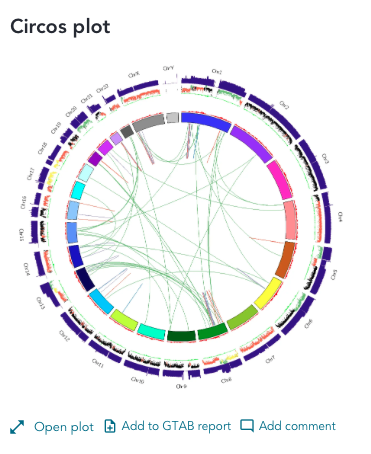
The following user actions can be performed on the circos plot:
Clicking "Open plot" will open the plot in plot viewer where you can zoom, drag, add to the GTAB report, add a comment, view the full plot description, and exit plot viewer
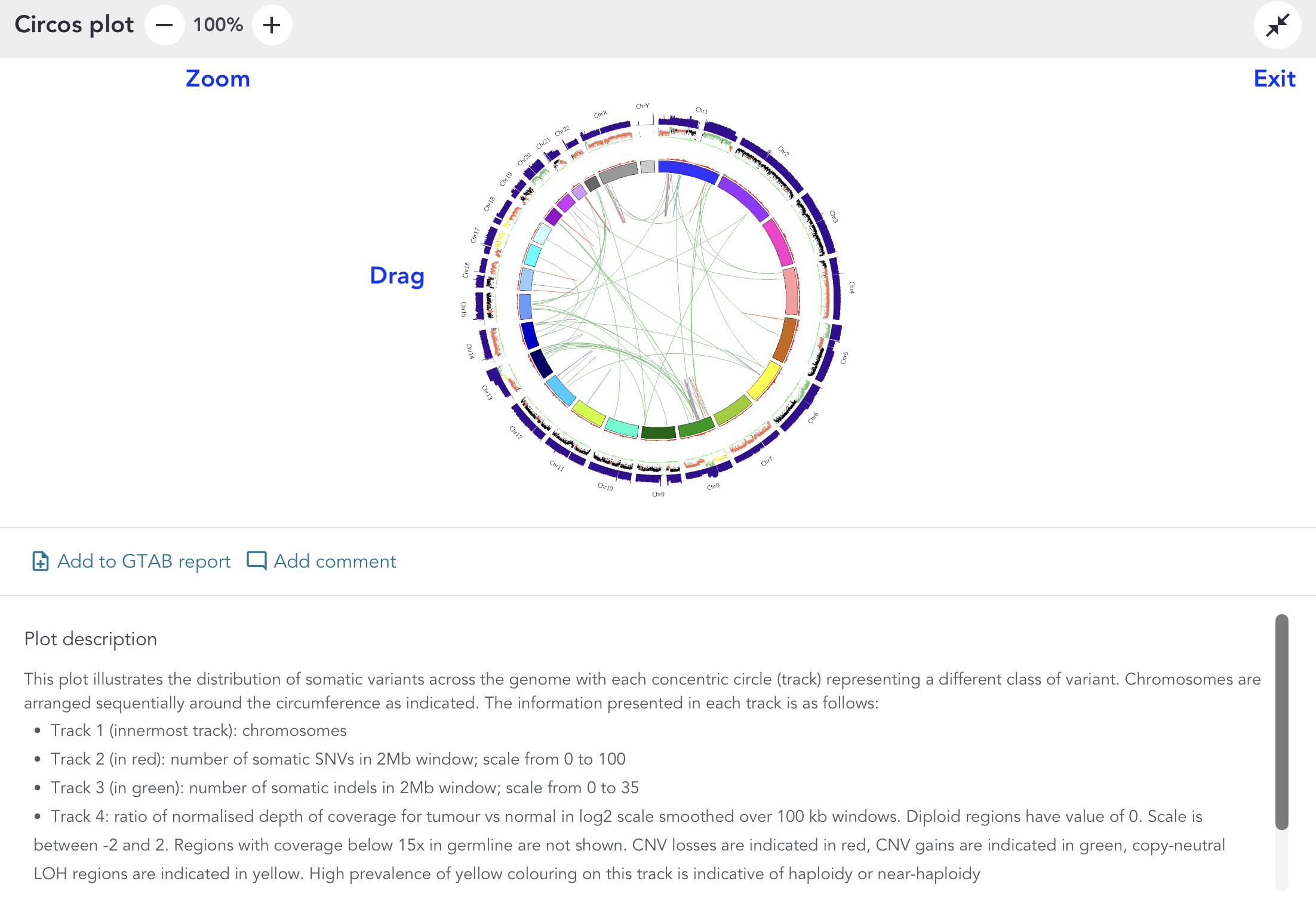
To add the circos plot and its associated comments to the GTAB summary:
- Click the Add to GTAB report icon on the circos plot card or interpretation drawer

- Click the GTAB report icon from the navigation sidebar to go to the GTAB summary

To remove the circos plot and its associated comments from the GTAB summary click "Remove from GTAB report"
Clicking on the "Add comment" button opens the interpretation drawer to the side of the screen.
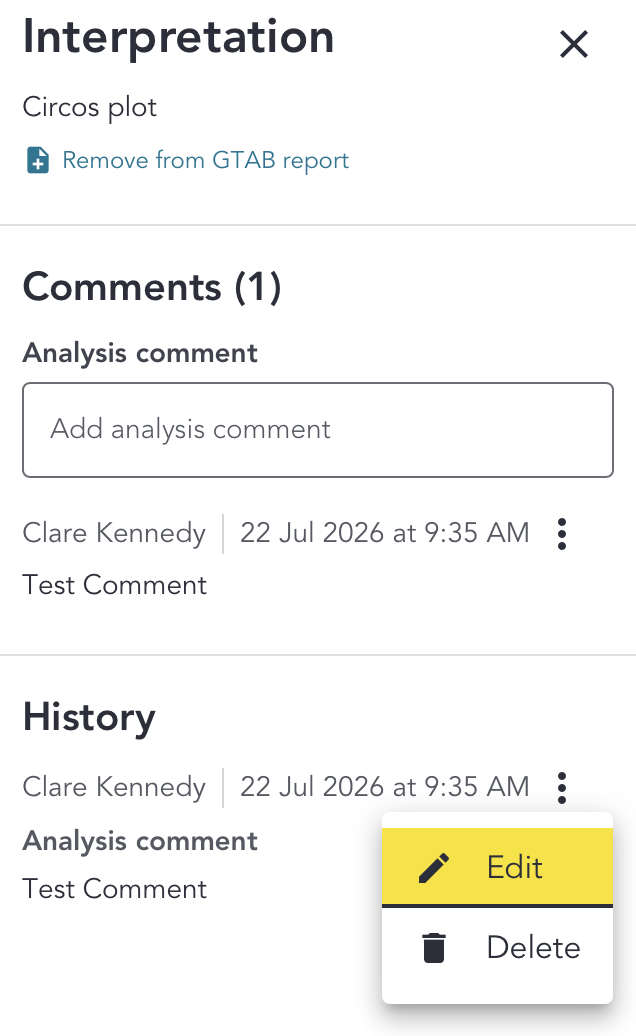
In the analysis comment box, enter the comment and to save click "Save comment". The comment will appear in the interpretation drawer history. To edit or delete, click on the three dots and select "Edit" or "Delete". You can only edit or delete your own comments.
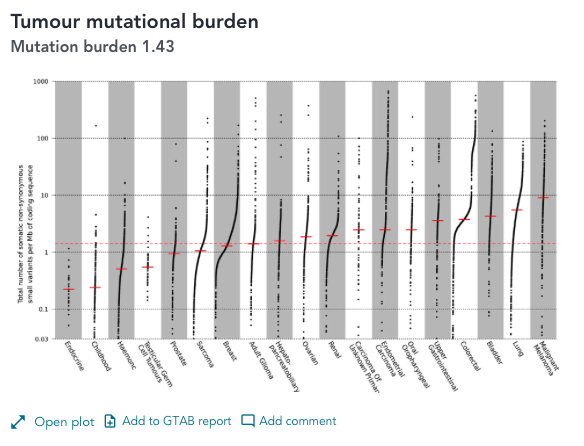
The following user actions can be performed on the tumour mutational burden (TMB) plot:
Clicking "Open plot" will open the plot in plot viewer where you can zoom, drag, add to the GTAB report, add a comment, view the full plot description, and exit plot viewer
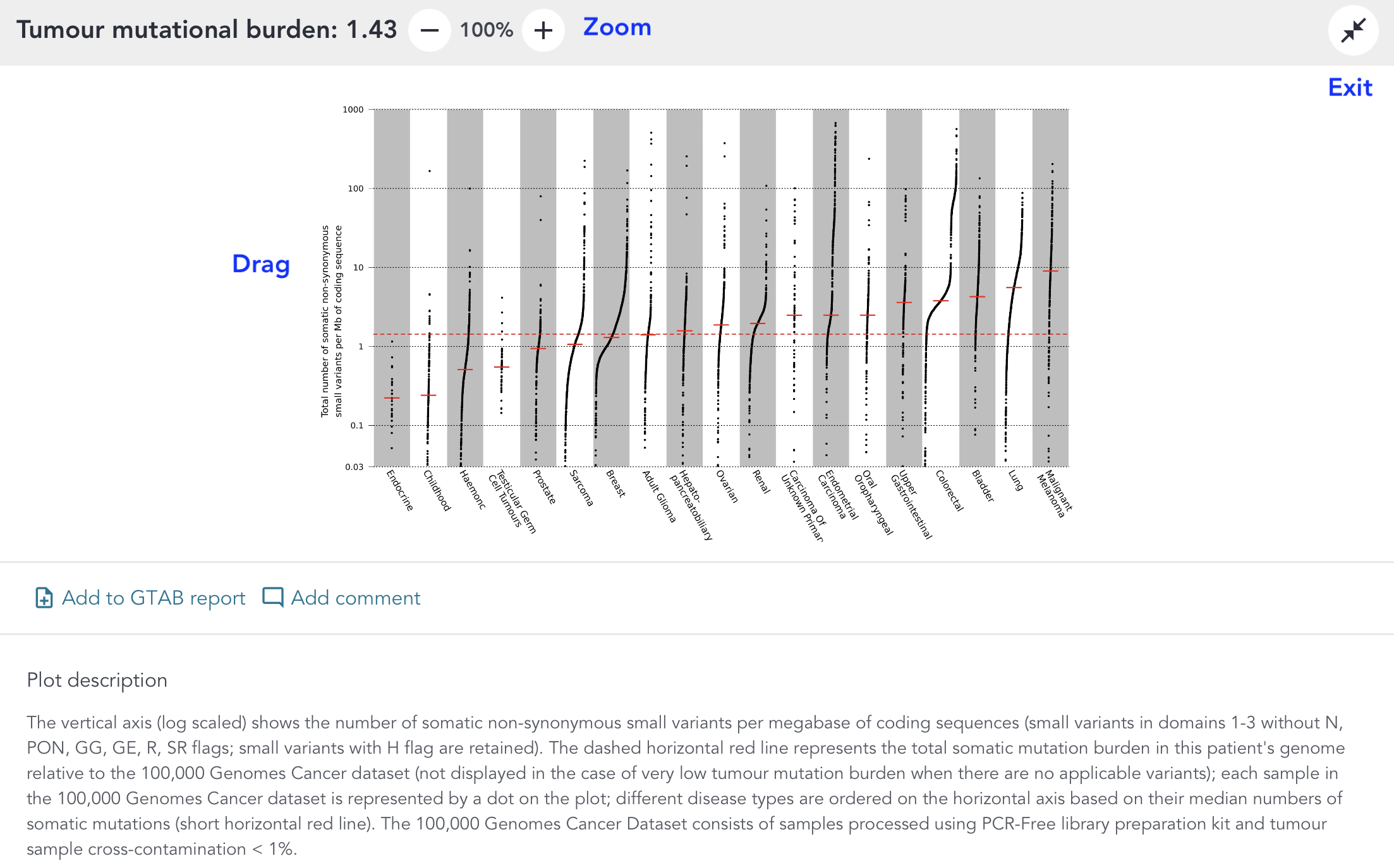
To add the tumour mutational burden plot and its associated comments to the GTAB summary:
- Click the Add to GTAB report icon on the tumour mutational burden plot card or interpretation drawer
- Click the GTAB report icon from the navigation sidebar to go to the GTAB summary
To remove the tumour mutational burden plot and its associated comments from the GTAB summary click "Remove from GTAB report"
From the interpretation drawer, comments, actionability and usability information can be added to the tumour mutational burden plot.
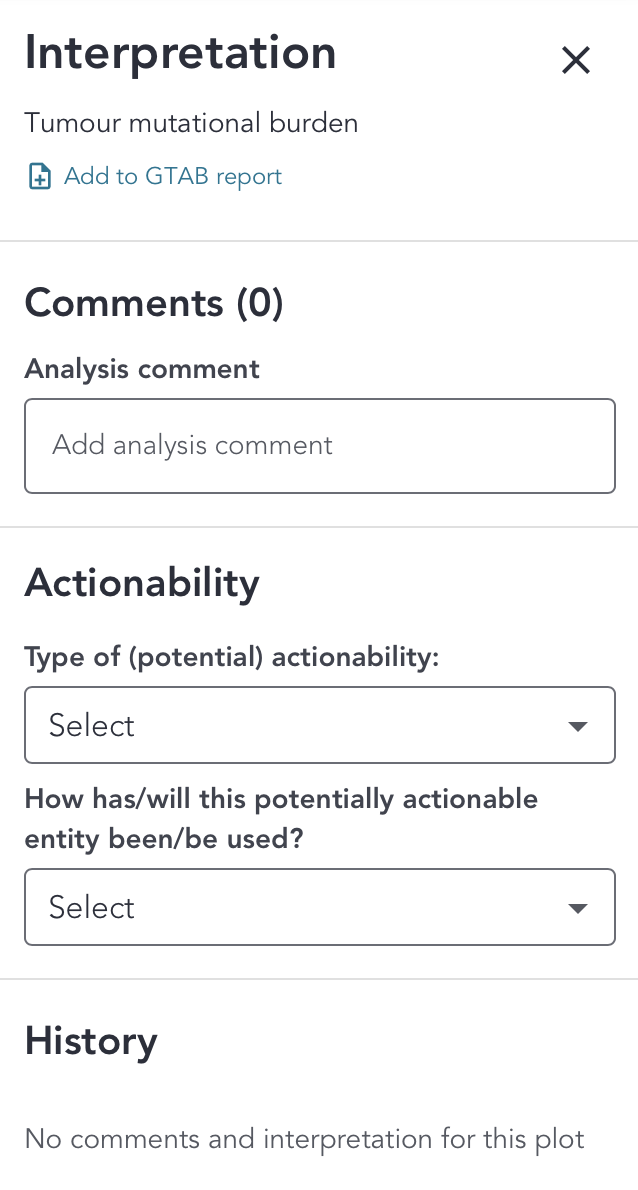
- Clicking on the "Add comment" or "View comments" button opens the interpretation drawer to the side of the screen
- In the analysis comment box, enter the comment and click "Save comment". The comment will appear in the interpretation drawer history with the name of the user who added the comment and a date-timestamp
- To edit or delete, click on the three dots and select "Edit" or "Delete". You can only edit or delete your own comments
- To add actionability information, click the dropdown menu under Type of (potential) actionability and select the options that apply
- Once an actionability option has been chosen, a comment box will appear. Add an optional comment to accompany the actionability information by entering the comment to the comment box and click Save comment
- To add usability information, click the dropdown menu under How has/will this potentially actionable entity been/be used? and select the option that applies
- Once a usability option has been chosen, a comment box will appear. Add an optional comment to accompany the usability information by entering the comment to the comment box and click Save comment
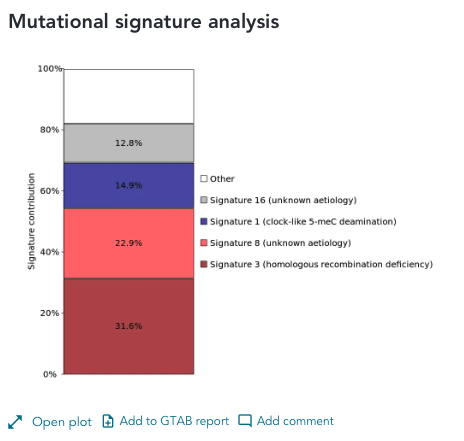
The following user actions can be performed on the mutational signature analysis plot:
Clicking "Open plot" will open the plot in plot viewer where you can zoom, drag, add to the GTAB report, add a comment, view the full plot description, and exit plot viewer
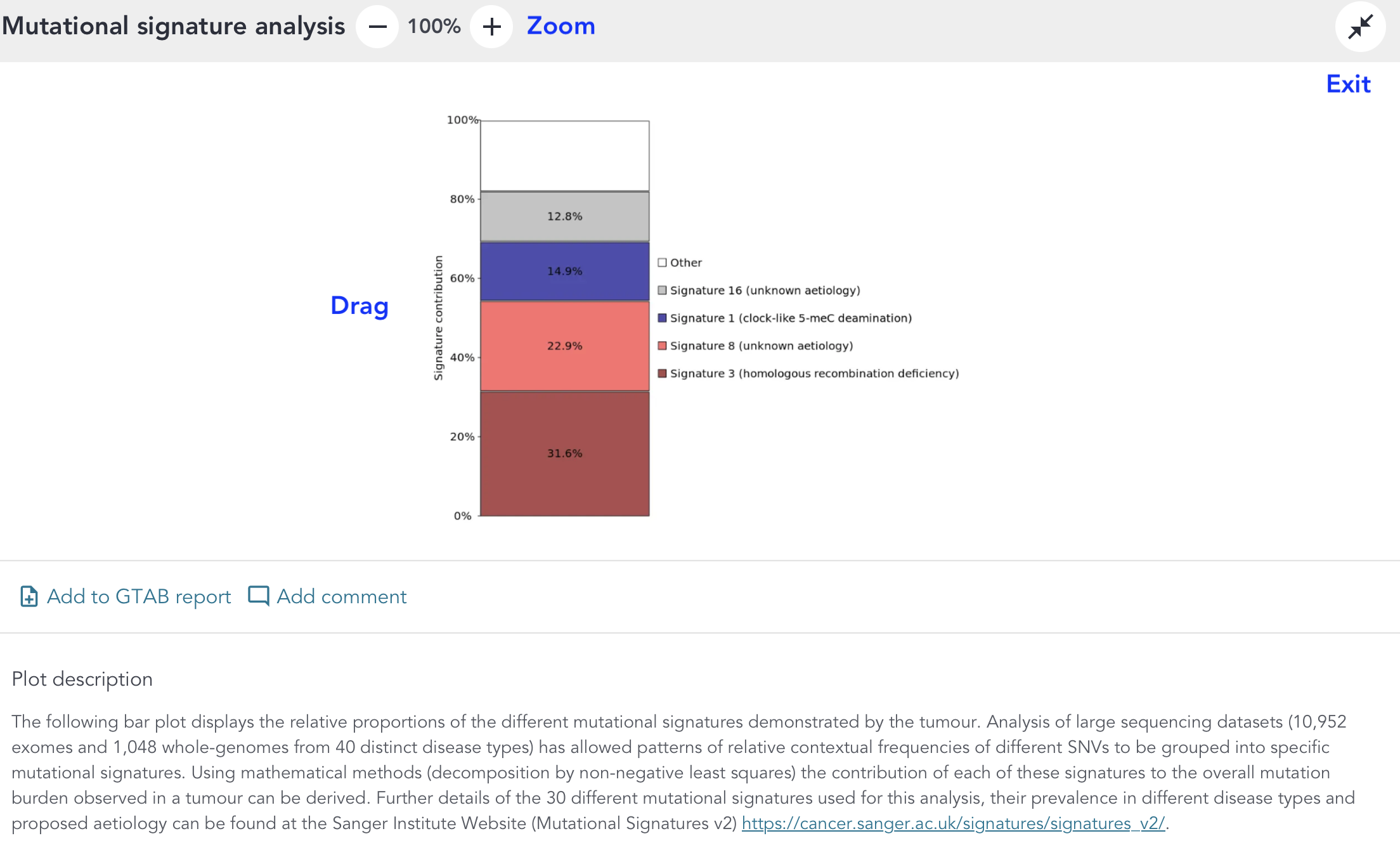
To add the mutational signature analysis plot and its associated comments to the GTAB summary:
- Click the Add to GTAB report icon on the mutational signature analysis plot card or interpretation drawer
- Click the GTAB report icon from the navigation sidebar to go to the GTAB summary
To remove the mutational signature analysis and its associated comments from the GTAB summary click "Remove from GTAB report"
From the interpretation drawer, comments, actionability and usability information can be added to the mutational signature analysis plot.
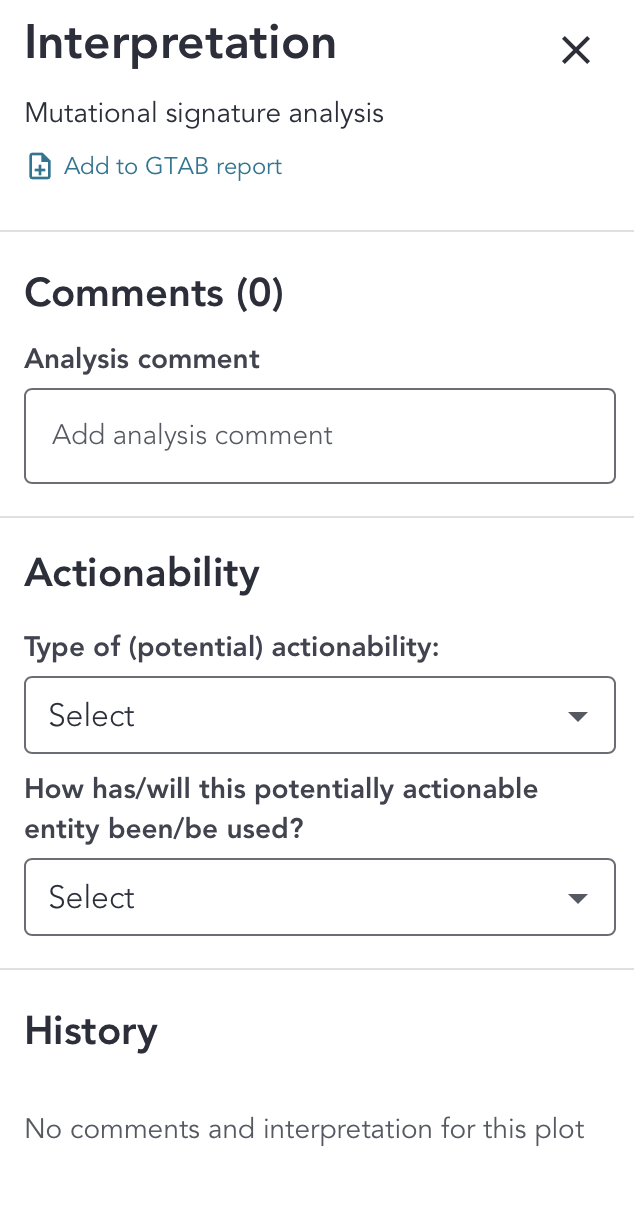
- Clicking on the "Add comment" or "View comments" button opens the interpretation drawer to the side of the screen
- In the analysis comment box, enter the comment and click "Save comment". The comment will appear in the interpretation drawer history with the name of the user who added the comment and a date-timestamp
- To edit or delete, click on the three dots and select "Edit" or "Delete". You can only edit or delete your own comments
- To add actionability information, click the dropdown menu under Type of (potential) actionability and select the options that apply
- Once an actionability option has been chosen, a comment box will appear. Add an optional comment to accompany the actionability information by entering the comment to the comment box and click Save comment
- To add usability information, click the dropdown menu under How has/will this potentially actionable entity been/be used? and select the option that applies
- Once a usability option has been chosen, a comment box will appear. Add an optional comment to accompany the usability information by entering the comment to the comment box and click Save comment
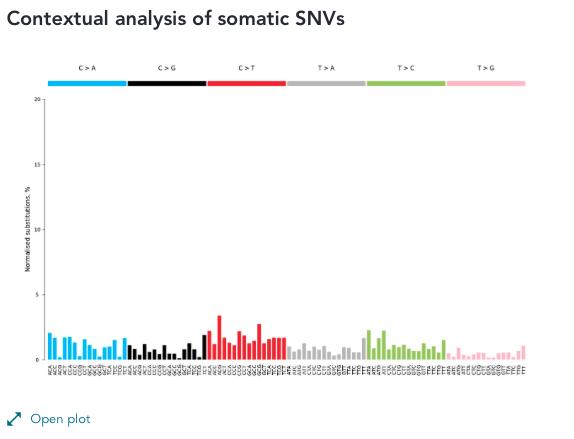
The following user actions can be performed on the contextual analysis of somatic SNVs plot:
Clicking "Open plot" will open the plot in plot viewer where you can zoom, drag, view the full plot description, and exit plot viewer
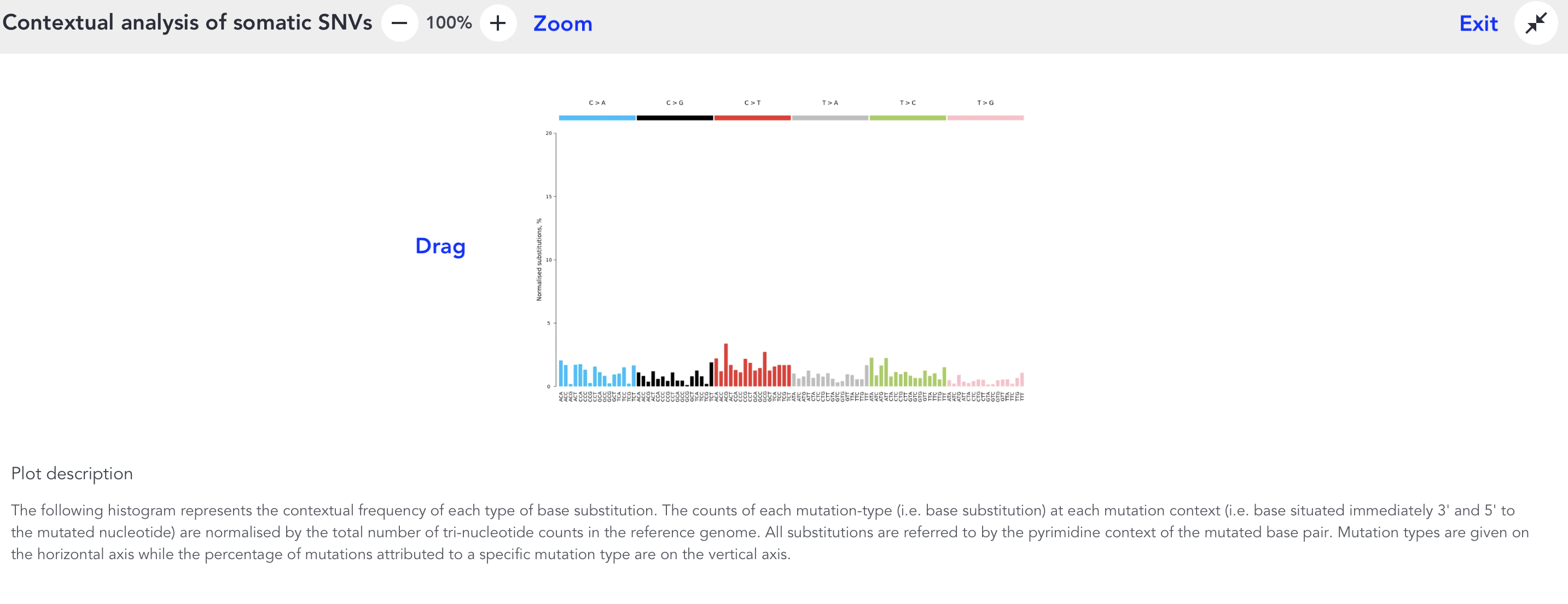
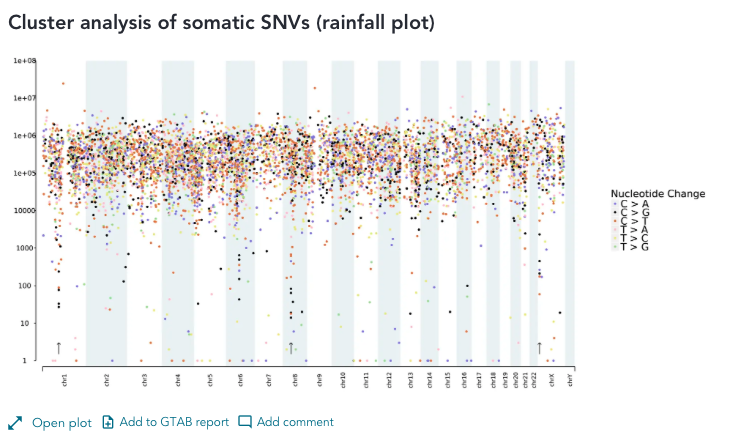
The following user actions can be performed on the rainfall plot:
Clicking "Open plot" will open the plot in plot viewer where you can zoom, drag, add to the GTAB report, add a comment, view the full plot description, and exit plot viewer
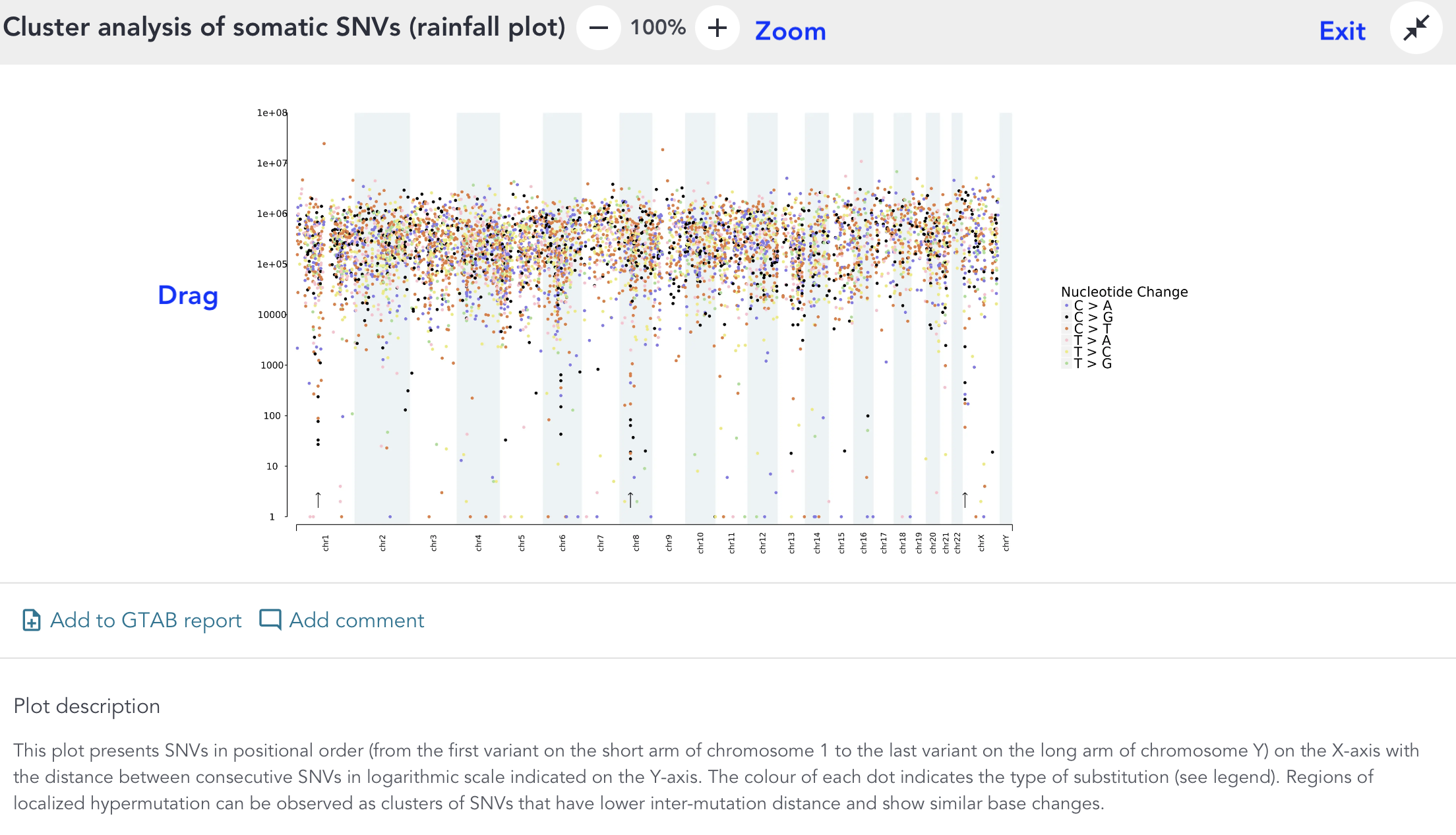
To add the rainfall plot and its associated comments to the GTAB summary:
- Click the Add to GTAB report icon on the rainfall plot card or interpretation drawer
- Click the GTAB report icon from the navigation sidebar to go to the GTAB summary
To remove the rainfall plot and its associated comments from the GTAB summary click "Remove from GTAB report"
Clicking on the "Add comment" button opens the interpretation drawer to the side of the screen.
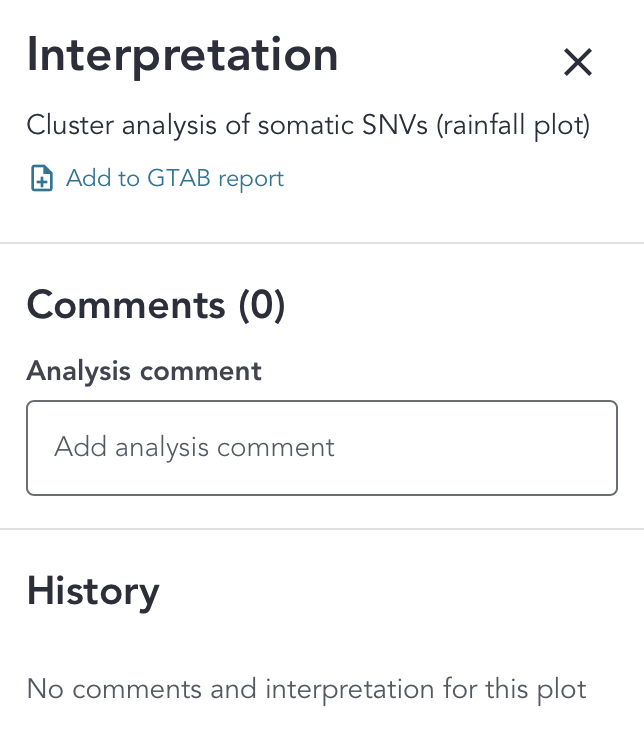
In the analysis comment box, enter the comment and to save click "Save comment". The comment will appear in the interpretation drawer history. To edit or delete, click on the three dots and select "Edit" or "Delete". You can only edit or delete your own comments.
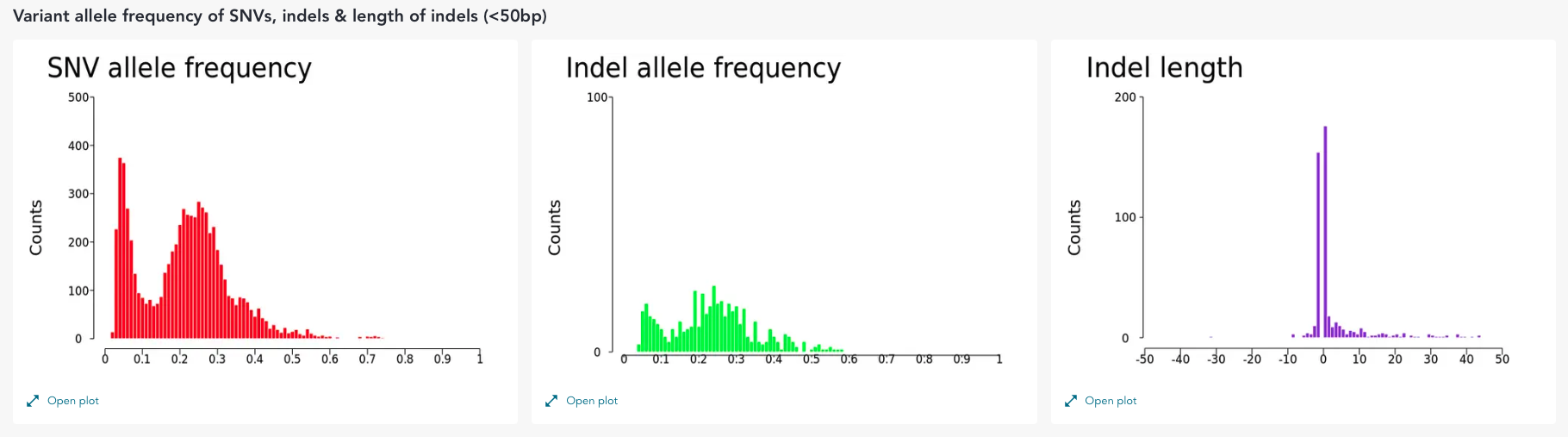
The following user actions can be performed on the contextual analysis of somatic SNVs plot:
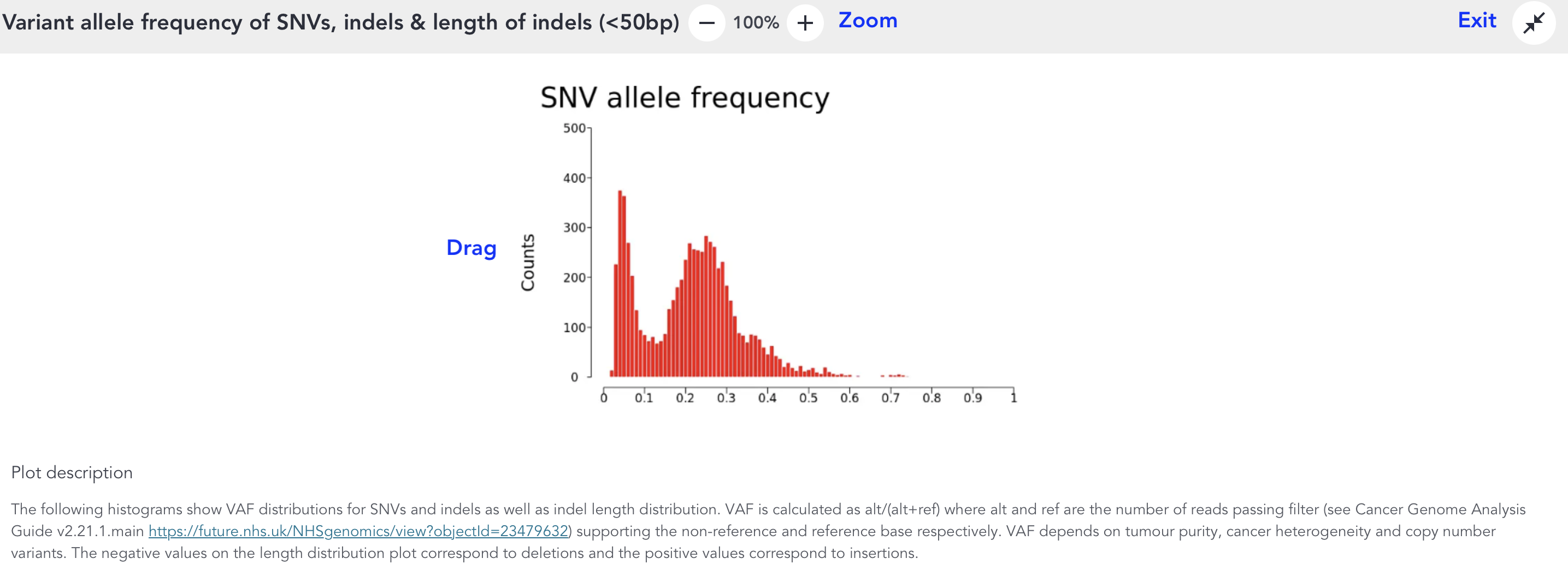
Clicking "Open plot" will open the plot in plot viewer where you can zoom, drag, view the full plot description, and exit plot viewer
TINC cases
Note that some cases with high or undetermined levels of tumour in normal contamination will not have global analysis plots available.