Getting Started
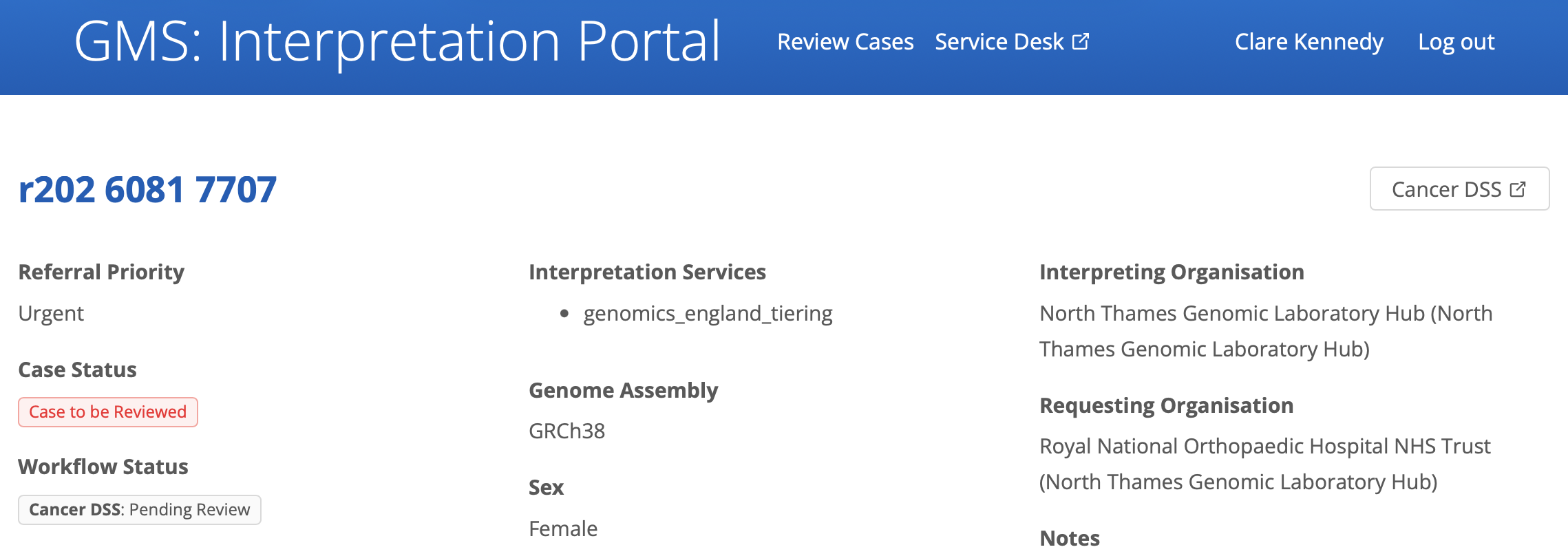
To open a specific case, launch the cDSS from the IP using the 'cancer DSS' link out
Warning
The 'Cancer DSS' button in the IP that launches a case in the DSS is always enabled, even before the DSS has completed ingestion. Please wait until the IP Workflow Status shows as 'Pending Review' before attempting to view in the DSS.
Opening a case from the case list or the IP will take a user to the case summary page by default. Users can navigate to different pages in the DSS using the navigation sidebar shown below:

Key
| # | Section | Description |
|---|---|---|
| 1 | Case summary | Navigates to the Case Summary page. |
| 2 | Variant List | Click to expand and view the available variant lists. |
| 3 | Somatic small variants | Navigates to the Somatic small variant list. |
| 4 | Somatic structural and copy number variants | Navigates to the Somatic structural and copy number variant list. |
| 5 | Germline small variants | Navigates to the Germline small variant list. |
| 6 | Germline copy number variants | Navigates to the Germline copy number variant list. |
| 7 | Global Analysis Plots | Navigates to the Global Analysis Plots page. |
| 8 | GTAB summary | Navigates to the GTAB Summary page. |
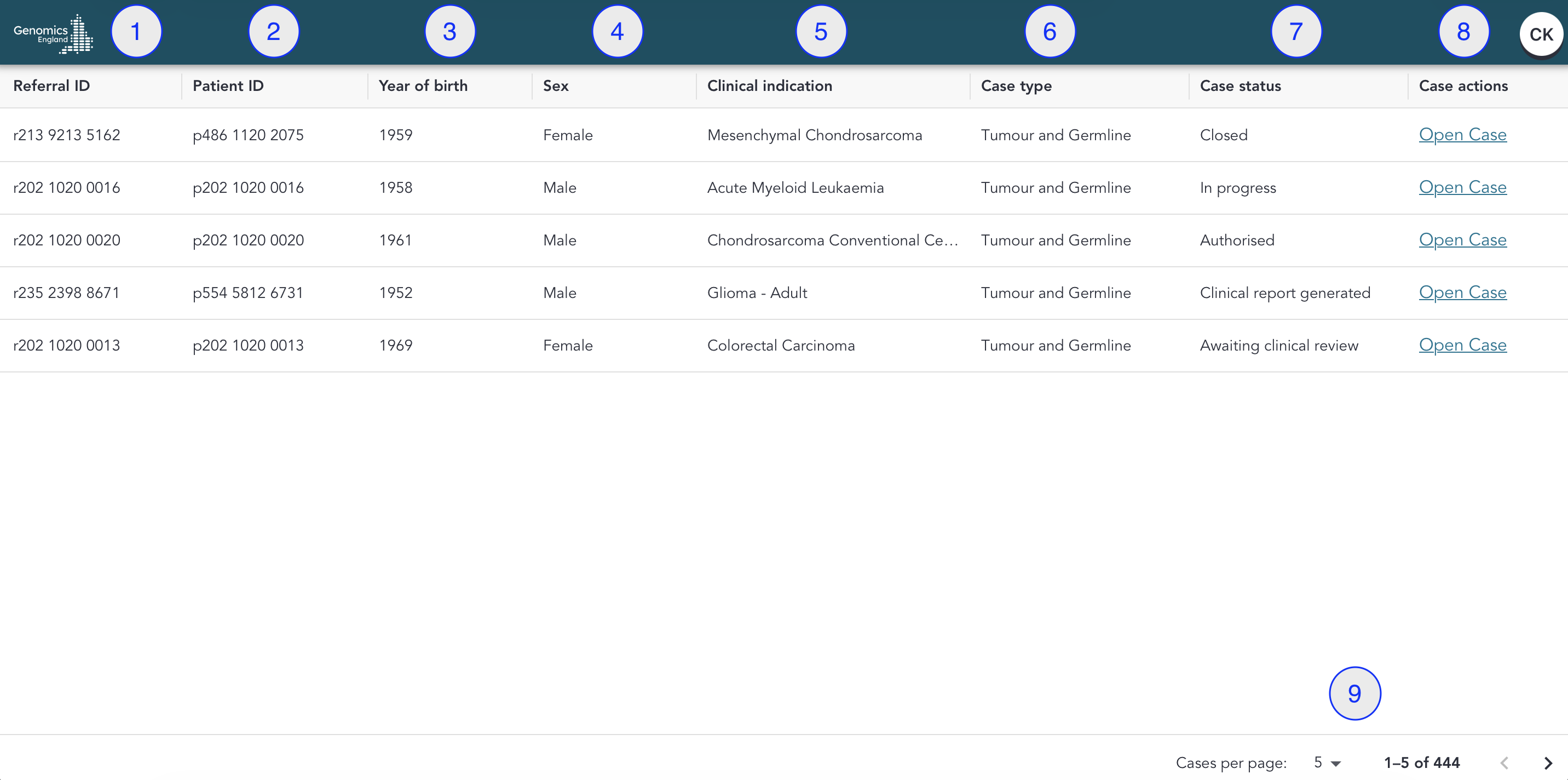
If you chose to launch the cDSS without opening a specific case from the IP, you will be taken to the Case List. This page allows you to:
- View an overview of case details (such as referral ID, patient ID, Clinical Indication... etc.)
- Check case status
- Open a case
Key
| # | Section | Description |
|---|---|---|
| 1 | Referral ID | Referral ID for the case |
| 2 | Patient ID | Patient ID for the case |
| 3 | Year of Birth | Patient Year of Birth |
| 4 | Sex | Patient Sex |
| 5 | Clinical indication | Patient Clinical Indication (National Test Directory) |
| 6 | Case Type | Tumour and Germline (Paired) or Tumour (Tumour first, Germline later) |
| 7 | Case Status | Case status (see "Case Status" section below) |
| 8 | Open Case | Click to open the case summary page. |
| 9 | Navigation Bar | Adjust the number of cases per page and nagivate through the pages. |
As soon as the DSS has successfully ingested a case, it will appear under the 'To Be Reviewed' tab on the IP. Updating the DSS case status can cause the case to appear in different workflow tabs in the IP, or update the IP 'Workflow Status'.
See below how the DSS case status maps to the IP case and workflow status:
| DSS Case Status | Description | IP Case Status | IP Workflow Status |
|---|---|---|---|
| Ready for analysis | Case has been ingested and is ready to be analysed | Case to be Reviewed | Cancer DSS: Pending Review |
| In progress | Case is currently being analysed | Case to be Reviewed | Cancer DSS: In Progress |
| Awaiting authorisation | Case has been analysed by one clinical scientist and is waiting for a secondary review | Case to be Reviewed | Cancer DSS: Awaiting Approval |
| Authorised | The case has gone through a secondary review and is authorised for reporting | Case to be Reviewed | (no change in IP) |
| Awaiting clinical review | Case is awaiting clinical review e.g., GTAB | Case to be Reviewed | (no change in IP) |
| Clinical report generated | The case has been reviewed by clinicians and a clinical report has been generated | Case to be Reviewed | (no change in IP) |
| Closed | A Clinical report has been returned to the referring clinician and case is closed | Reported Case | Cancer DSS: Closed |
Please see the IP Documentation for further details.
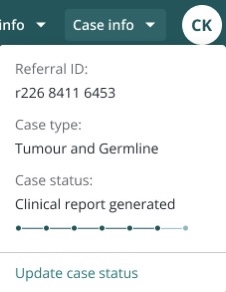
To view and edit the case status:
- Click the case info drop down menu and select "Update case status"
- Select the preferred case status and click 'update status'
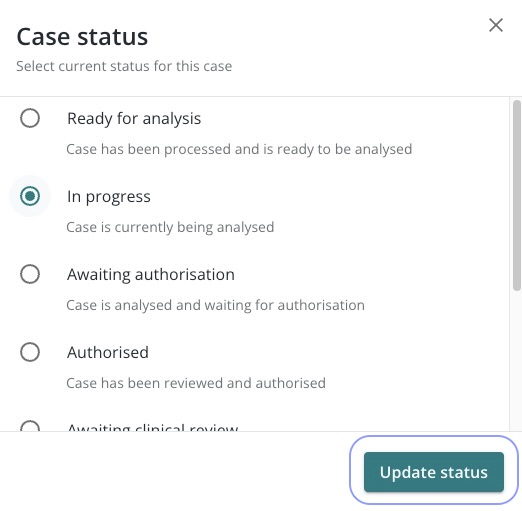
- The status will now update on the case info drop down menu
Closed Cases
Once a case is closed in the DSS, users will be unable to add comments, flag variants, add or edit variant classifications. The case will also be closed in the IP and users will no longer need to complete the outcome questionnaire in the IP for the case to move to the "Reported Cases" tab. After seven days, closed cases will be automatically archived in the DSS. Closed cases can be reopened in the DSS (e.g., to correct errors or update classifications) by changing the case status to any status other than closed.
Some cases can now appear as archived in the DSS. Archiving inactive cases improves DSS performance and user experience when working with active cases. A case may appear as archived in the DSS if it meets any of the following criteria:
- Cases that have not been worked on for 16 weeks
- Cases closed more than seven days ago in the DSS or the IP
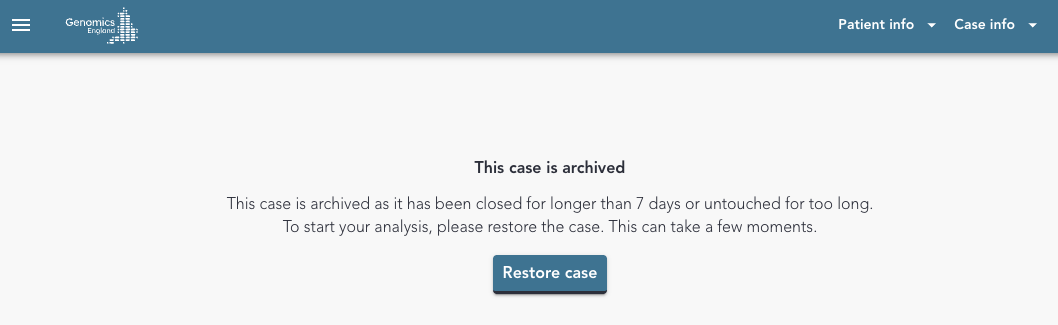
Restoring an archived case
Click Restore case to restore an archived case directly from the DSS. If you encounter any issues while restoring a case, please get in touch with support via the Genomics England Service Desk.
To get access to the audit logs, please raise a request via the Genomics England Service Desk. A member of the team at Genomics England will be able to generate a report.